
Adding, editing, or removing users
Managing your team's access to junbi is a straightforward process. From your account settings, you can add new team members, update their details, or remove users who no longer need access to the platform.
Prerequisites
Important: To add, edit, or remove users, you must have an active junbi account with the Tenant admin role. If you do not have this role, you will not be able to manage your team's access. For a detailed breakdown of what each specific permission level can do, please check our dedicated article on user roles.
How to access the user overview
- Click the hamburger icon on the left-hand side of the junbi interface; a menu will open.
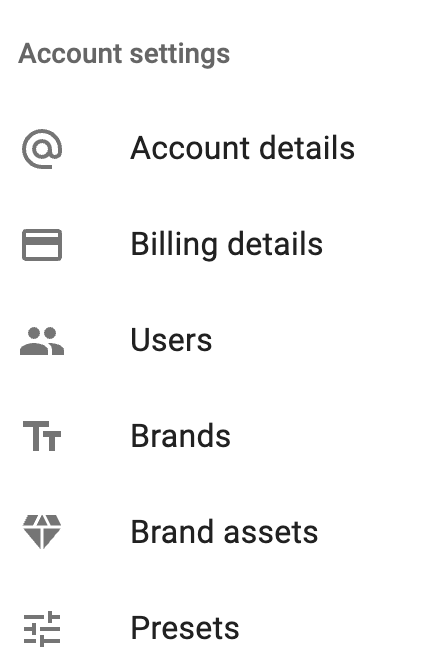
- Under Account Settings, click on the Users tab. Here, you will see a complete overview of all users currently associated with your account.
How to manage users
Depending on what you need to do, follow the corresponding action from the Users overview page:
- To add a user: Click the "+ add user" icon. Enter the required details for the new team member, select their appropriate user role, and save.
- To edit a user: Click the three dots (⋮) on the far right side of the specific user's row, and select Edit. You can then update their details or change their role permissions.
- To remove a user: Click the three dots (⋮) on the far right side of the specific user's row, and select Remove.
💡 Pro Tip:
The right role for the job: Before adding a new team member, confirm which level of access they actually need to do their job. Giving someone the Tenant admin role grants them full control over your organization's settings, while a standard user role is perfect for day-to-day video testing.