
Viewer Modes: Selection and Usage Guide
Viewer modes define the contextual setting in which you test your ad. Instead of playing your video in an empty space, junbi surrounds your creative with realistic platform distractions like video thumbnails, comment sections, and recommendations. This allows you to simulate exactly how viewers will experience your ad on different devices.
The Strategic Value
People never watch videos in a perfectly controlled white box. Your ad must always compete with external information and visual distractions. By testing your creative in a realistic viewer mode, you ensure your design and messaging are strong enough to capture human attention regardless of the digital environment.
How Viewer Modes impact your scores
Testing in context directly changes how the predictive AI models analyze visual attention.
- Ad Breakthrough score: This score calculates the amount of attention drawn to your ad versus its surroundings. Because every viewer mode introduces different distractions, your Ad Breakthrough score will naturally change depending on the context you select.
- Overall Score: This ad-level score provides a holistic prediction of performance based on your core metrics. When a viewer mode shifts your Ad Breakthrough score, it indirectly impacts your Overall Score.
- Robust testing: To provide highly accurate data, junbi automatically runs your creative through multiple variations of your chosen viewer mode. The platform tests against light and dark mode, different resolutions, and varying comment sections before normalizing the final score.
How to select a Viewer Mode
When setting up your ad test, you can choose from four distinct environments.
-
Upload your creative to the junbi platform.
enter ad details, select your brand and go to the Viewer Mode settings.
Select one of the following options based on your campaign requirements:
-
Desktop (normal): The standard view for desktop users. The ad takes up two-thirds of the screen with video recommendations on the right side.

-
Theater: A larger desktop view that mimics full-screen while keeping comments and related content accessible.
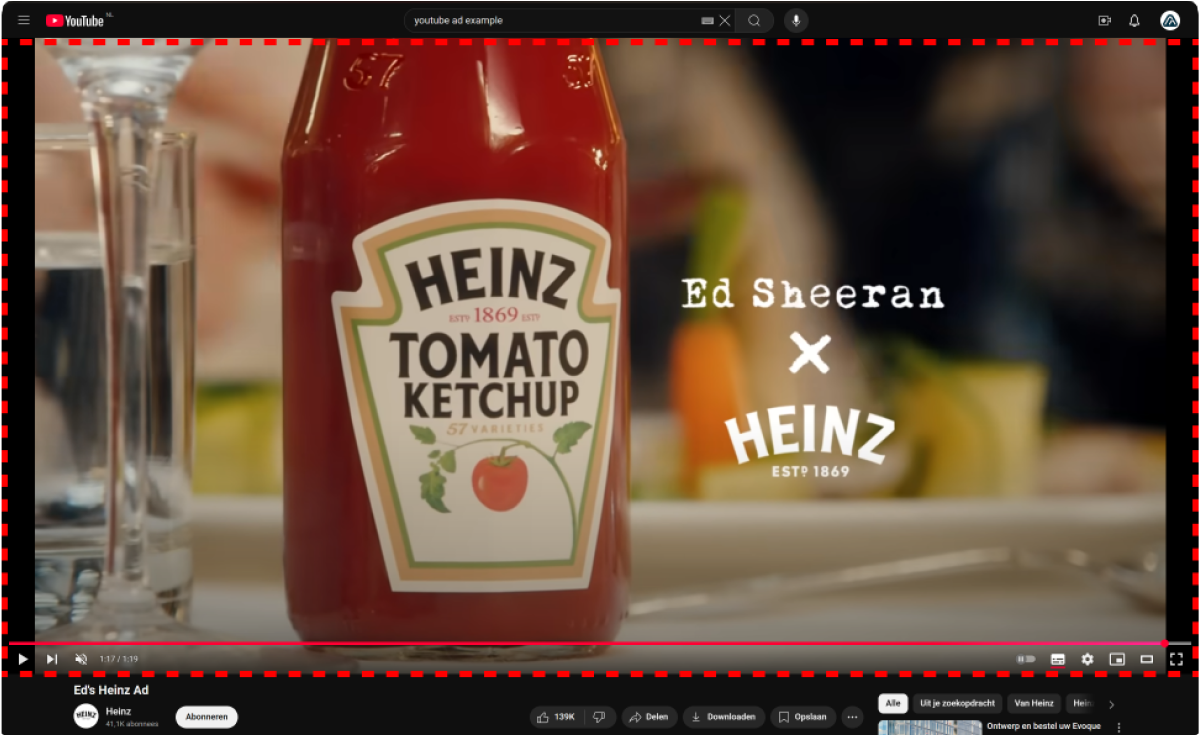
-
Connected TV: The default living room view. The ad displays in full-screen without any recommendations or comments.

-
Mobile: The standard vertical phone view. Recommendations and comments appear directly below the video.

-


💡 Pro Tip
Align with your strategy: Always align your selected viewer mode with your actual media buying strategy. If you know that the vast majority of your target audience will see your campaign on their smartphones, make sure to test your video using the Mobile viewer mode. This guarantees you get the most realistic Ad Breakthrough score for your specific use case.