
How to create and use presets
Presets in junbi allow you to apply a fixed combination of settings to your ad analysis. Instead of manually selecting the brand name, viewer mode, and ad type every time you test a new video, you can apply a predefined preset. Please note that only tenant administrators can create or delete presets. All other users can view and use the available presets during their workflow.
The Strategic Value
Testing multiple assets or video variations requires strict consistency. Presets eliminate manual entry errors and speed up your upload workflow. This allows your team to focus on analyzing data rather than performing repetitive clicks.
How to create and manage presets
If you have admin permissions on your account, you can set up presets for your entire organization to use.
- Click the hamburger menu in the top left corner to open the side navigation.
-
Select the Presets page.
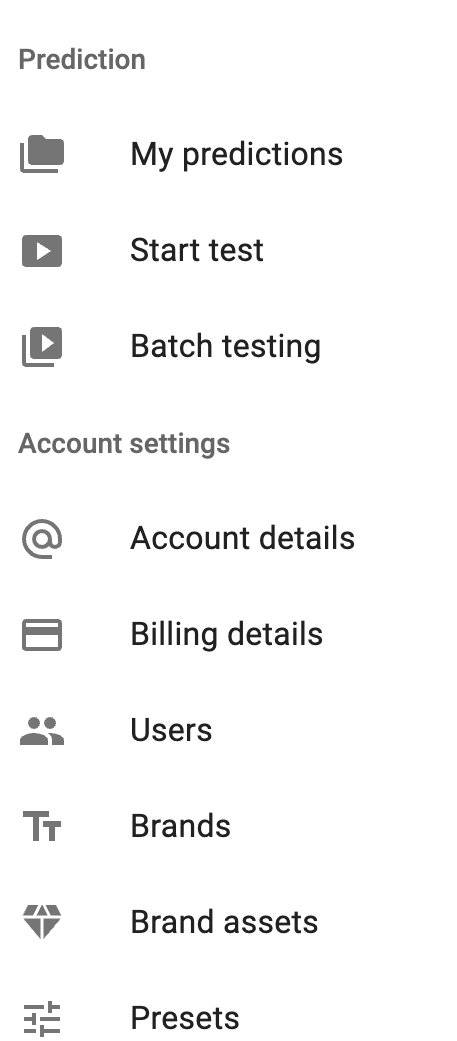
- Click the Add new preset button located in the top right corner.
- Give your new preset a clear name.
- Select the specific brand name, viewer mode, and ad type you want to bundle together.
- Click Save to store your configuration. The preset is now instantly available to all users in your workspace.
To manage your list later, simply return to the Presets page. You can click on any existing preset to change its settings or click the Bin icon to delete it completely.
How to use a preset
Once a tenant administrator sets up a preset, any user can apply it during the regular ad upload process.
- Upload your ad via direct file upload.
- Give your ad test a name.
-
Locate the preset dropdown menu and select the desired preset instead of manually selecting a brand.
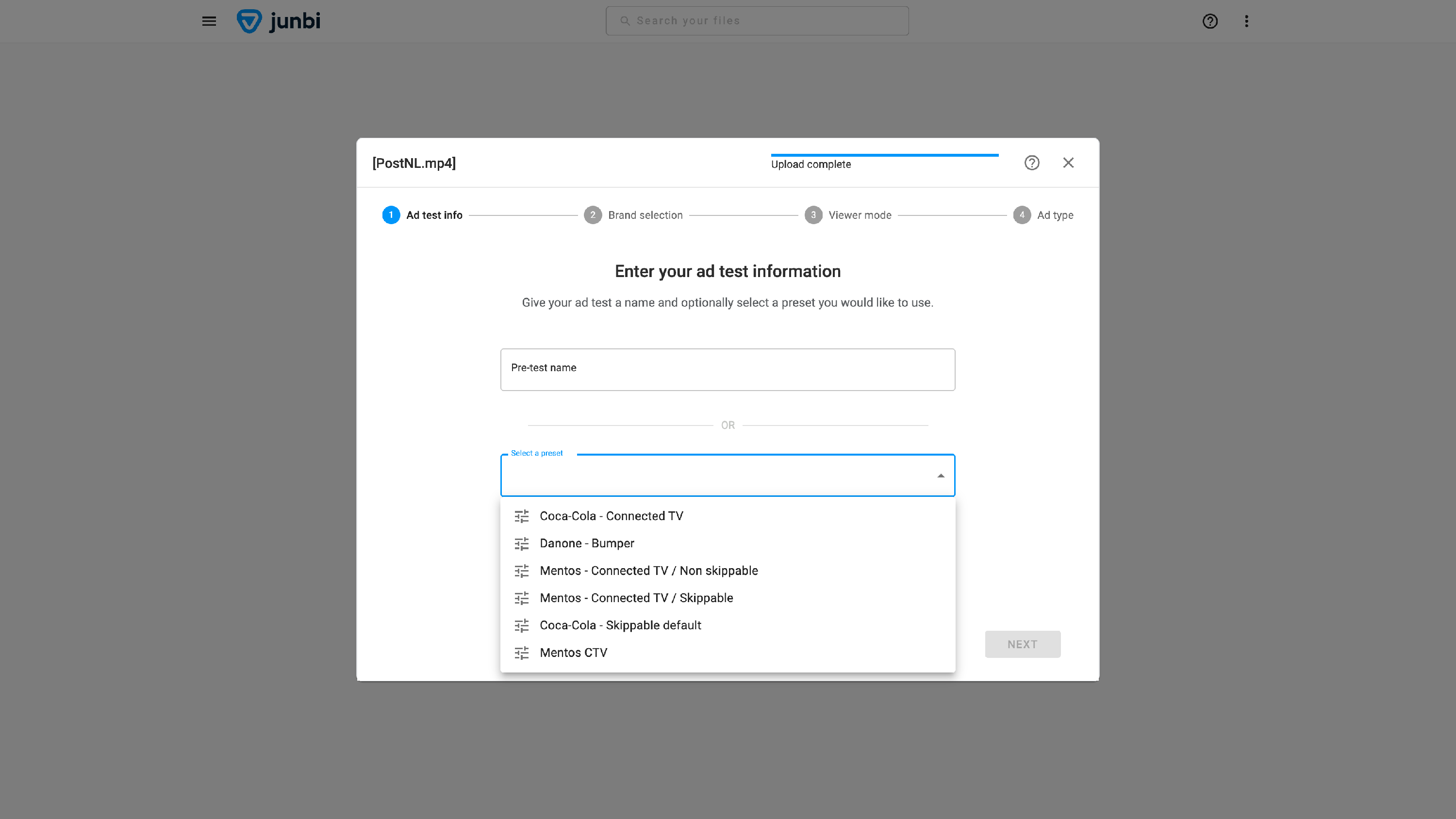
- Click Next to start processing your ad. junbi will automatically apply all the settings defined in that preset.
💡 Pro Tip
Establish a naming convention: When admins create a new preset, they should use highly descriptive names so end users understand exactly when to use it. A specific name like "Mobile Viewer Campaign for Nike" prevents confusion and keeps your organization running smoothly.