
How to interpret visual attention heatmaps
Interpreting visual attention heatmaps in expoze involves evaluating predicted eye-tracking data against your specific creative objectives. By analyzing color salience intensity and percentage metrics across key design elements, teams can determine whether priority messaging captures initial viewer focus.
Strategic value
Evaluating heatmap data systematically ensures design iterations are driven by objective visual salience rather than subjective preference. Identifying attention bottlenecks early allows you to refine contrast, layout, and visual hierarchy before publishing your campaign.
Key considerations when running and interpreting heatmaps
1. Define your testing objectives
Before analyzing heatmap results, establish the core purpose of your asset:
- Identify the primary goal: Determine if the creative aims to build brand awareness, drive direct sales conversions, or guide user navigation.
- Target specific focal elements: Match your goal to the most critical design elements. For brand awareness, focus on the logo and brand name. For direct response or sales, focus on the product visual and call to action.
2. Read the heatmap color scale
The heatmap overlay displays predicted visual salience across your asset using color intensity:
- High attention (Dark Red): Represents peak visual salience (values approaching 1.00), where viewer eyes focus first.
- Low attention (Dark Blue): Highlights low-salience regions (values down to 0.01) that capture minimal focus.
-
Unnoticed regions (Transparent): Indicates areas receiving zero predicted visual attention.
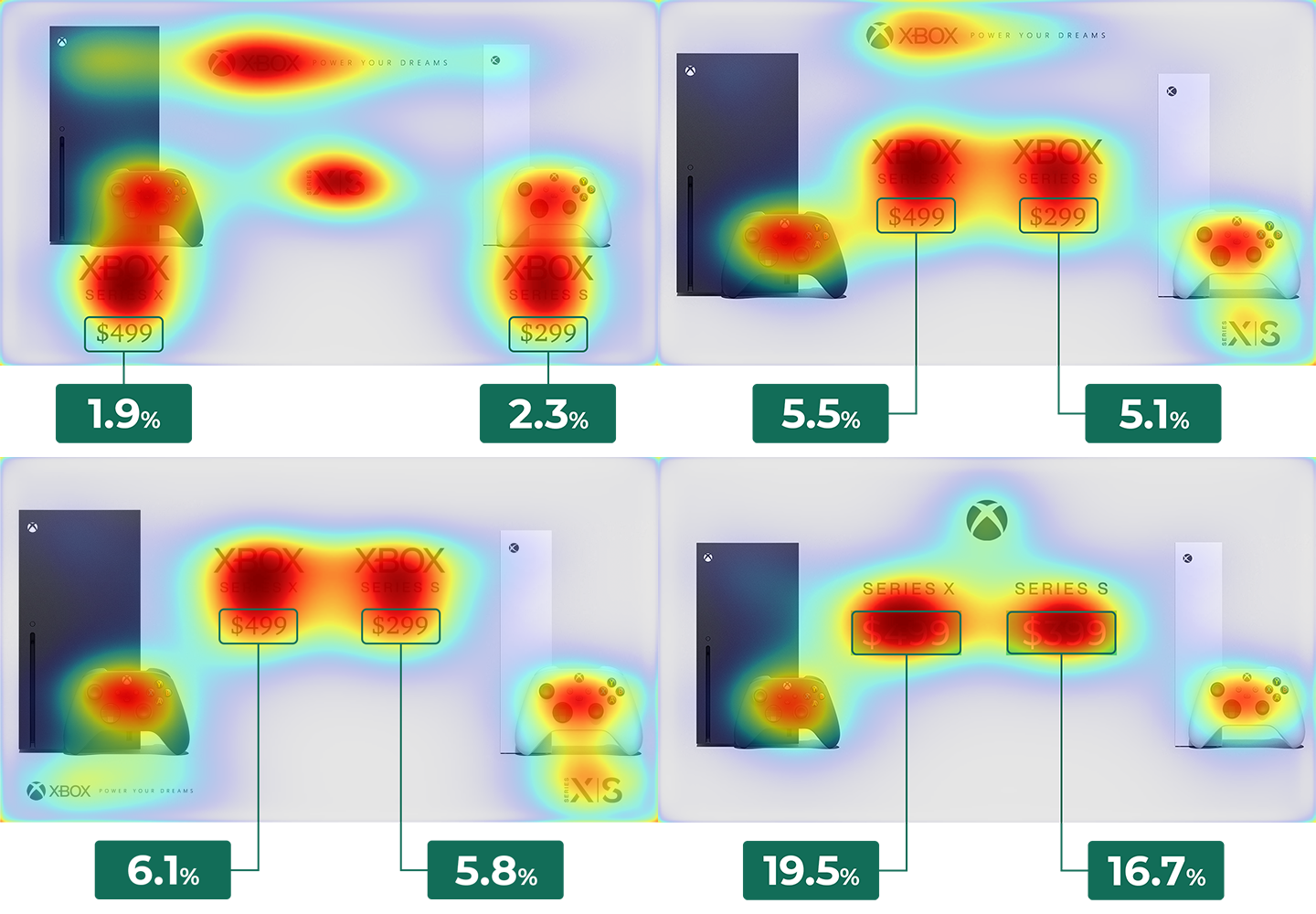
3. Evaluate Area of Interest (AOI) percentage scores
Areas of Interest convert visual heatmap data into exact percentage metrics:
- Understand metric context: AOI percentage scores measure attention relative to the total surface area of your asset.
- Compare score to element size: A small call to action button commanding a 10% attention score indicates high visual effectiveness, whereas a large product image capturing only 30% suggests competing visual clutter.
-
Benchmark variations: Compare AOI percentage scores across multiple design iterations to evaluate relative performance changes objectively.
4. Optimize and iterate based on results
If key elements fail to capture required attention, adjust your creative using strategic design updates:
- Increase color contrast: Apply high-contrast colors to primary elements to pull visual focus away from secondary elements.
- Adjust layout and spacing: Move competing elements further apart to allow viewer focus to settle on primary messaging.
-
Declutter visual information: Remove unnecessary decorative elements or secondary text blocks to streamline overall visual hierarchy.
💡Pro Tip
Evaluate AOI percentage scores in proportion to element size rather than aiming for a fixed percentage target. Small elements like logos or buttons often succeed with lower overall percentage scores if surrounding high-contrast regions do not divert viewer attention away.