
Heatmap settings
Heatmap settings in expoze allow you to adjust how visual attention predictions are rendered over your design assets. You can select pre-configured heatmap presets or adjust custom parameters to tailor color scales, transparency, and contrast settings to your diagnostic requirements.
Strategic value
Standardizing your visual attention rendering ensures salience data is communicated clearly across your organization. Selecting the appropriate heatmap configuration allows you to tailor visual outputs for accessible viewing, presentation needs, or strict scientific comparison.
How to adjust heatmap settings
- Select the file, layer, or frame you want to analyze.
- Click Create heatmap to open the setup menu.
- Select a pre-configured option under Presets, or click Custom settings to adjust individual visual parameters.
- Click Create heatmap to process your asset with your chosen visualization style.
Heatmap presets
Presets offer quick configurations designed for specific analytical and presentation goals:
-
Normal: Displays attention predictions using the standard Jet color spectrum, making peak attention areas stand out in bright red and yellow highlights.

-
Scientific: Applies a linear color distribution scale. A peak that appears twice as bright in this view mathematically represents twice the predicted human visual attention, offering a strictly linear data representation.
-
 Reveal: Obscures non-engaging design elements behind an opaque background, leaving only high-attention areas visible on your canvas.
 -
 Color blindness: Adjusts the color spectrum palette to ensure visual attention peaks remain clearly distinguishable for individuals with color vision deficiencies.


Custom heatmap settings
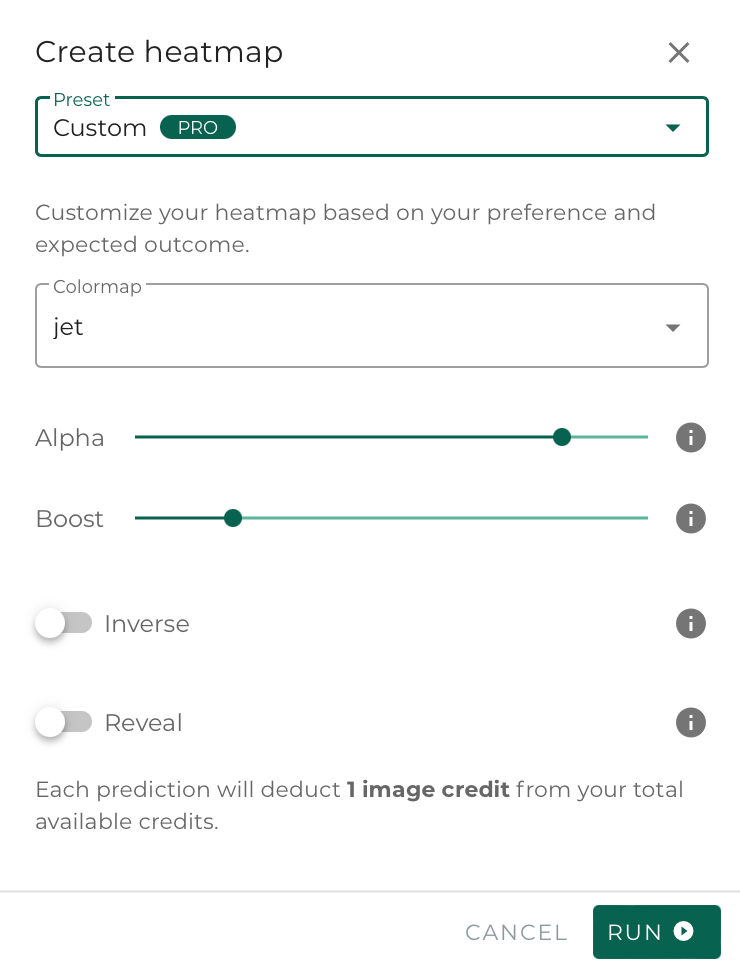
When standard presets do not match your precise display preferences, custom settings let you fine-tune individual visual controls:
- Colormap: Changes the active color palette used to represent visual salience across your asset.
- Alpha value: Controls the baseline transparency of the heatmap overlay. Higher values make the heatmap layer opaque, while lower values make it more transparent to reveal underlying design details.
- Boost value: Applies exponential scaling to saliency predictions. Values above 1.0 enhance low-attention areas to make them more visible, while values between 0.0 and 1.0 suppress high-attention peaks. The default baseline is 1.0.
- Inverse: Reverses the color spectrum order of your selected colormap without altering transparency levels.
-
Reveal: Inverts heatmap opacity so that low-attention areas become masked while high-attention regions remain visible.
💡Pro Tip
Use the Scientific preset when presenting attention data to analytical stakeholders or design leads. Because its brightness scale is strictly linear, visual peaks directly communicate proportional differences in attention, making comparative layout decisions easier to defend.