
Testing a new ad
Once your video ad is ready, you can use junbi to generate data-driven insights about its effectiveness before it goes live. This guide walks you through the exact steps to upload your file, configure your settings, and interpret your final prediction.
The Strategic Value
Following the correct setup process ensures your ad is analyzed under the exact conditions it will be viewed in the real world. This guarantees accurate, scientifically backed data to help you optimize your creative and maximize your media spend.
Step-by-step testing guide
Step 1: Upload your video
Upload your video: From your dashboard, click Test new ad. Select a video file from your computer. Ensure your file is in .mov, .m4v, or .mp4 format. Your video will begin uploading in the background while you complete the next steps.

Step 2: Fill in your ad details
Give your pre-test a clear name so you can easily find it later. At this stage, you also have the option to select a Preset. Using a preset automatically configures your testing environment, allowing you to skip steps 3 through 5 and jump straight to your results. For more details, check out our dedicated guide on how to use presets.

Step 3: Insert your brand name
Choose the brand name you want to test from the dropdown menu. This ensures the AI knows exactly what to look for during the brand detection phase. You can read more about how brand detection works in the Brand detection article.

Step 4: Select the Viewer mode
Choose the specific video player mode you wish to test for (desktop, desktop theater, mobile, connected tv). Note: This setting heavily influences your Ad Breakthrough score.
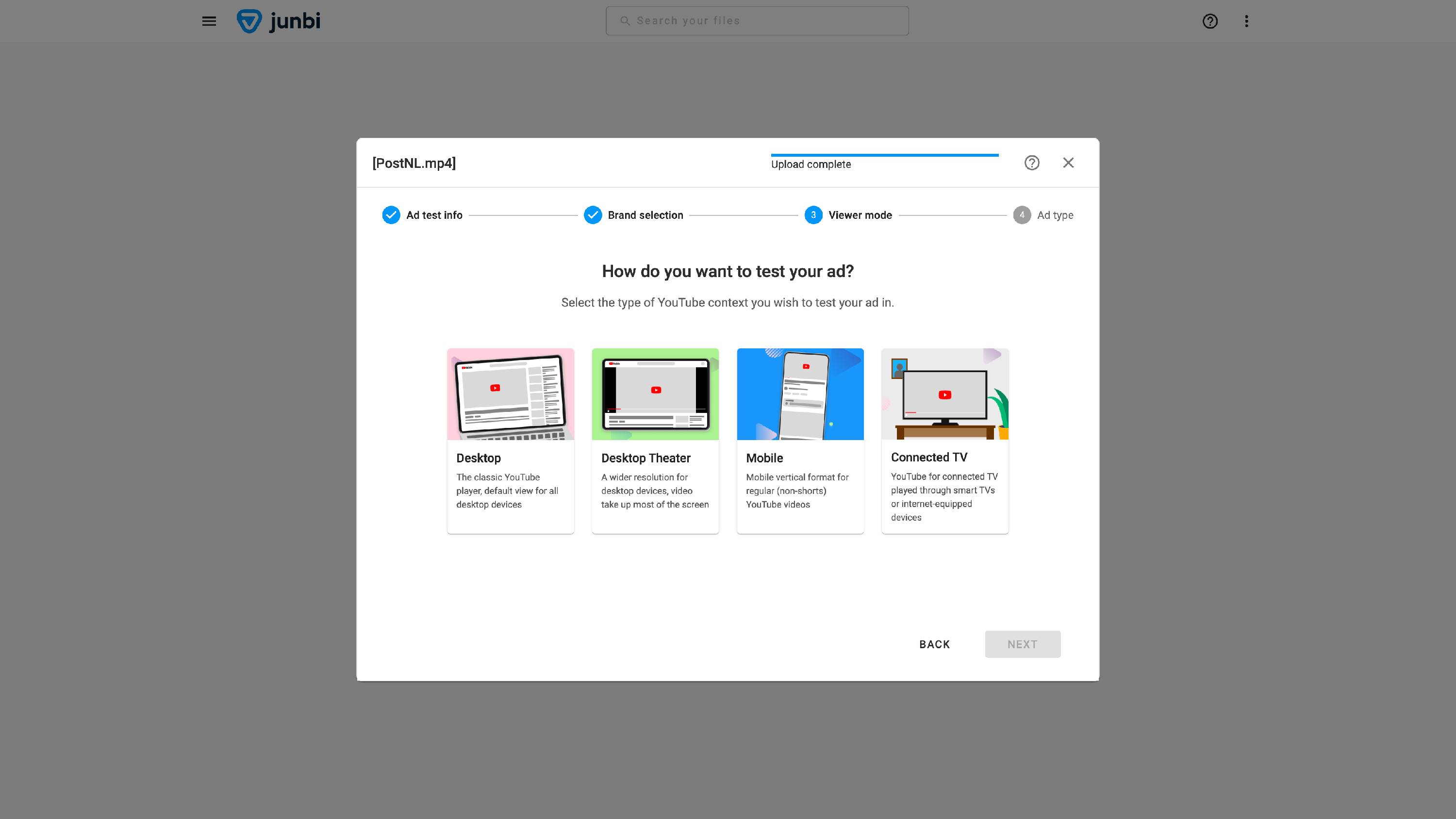
Step 5: Select an Ad type
Select the specific ad format (skippable in-stream, non-skippable in-stream, bumper ad). Different ad types are watched in different ways and are scored against different benchmarks. Once selected, click TEST AD.

Step 6: Generate your prediction
The platform will now generate your prediction. This takes a few moments, as the AI creates an attention heatmap and runs multiple neurological analyses on the video to calculate your effectiveness scores.
Step 7: View your output
Once the analysis is complete, your screen will refresh to display the results:
- The Media Player: Watch your ad with the attention heatmap overlay and brand attention bounding box to see exactly where visual attention is focused.
- Overall Score: Located in the top-right corner, this is a holistic score out of 100 predicting the overall effectiveness of your ad.
- The Core Metrics: Beneath the media viewer, you will see three colored score boxes. These represent your Ad Breakthrough, Brand Attention, and Cognitive Ease. These scores show how well your ad performs relative to a benchmark of over 20,000 real YouTube ads.
- Metrics Over Time: Expand the tab at the bottom to see these three metrics visualized second-by-second. Hover your mouse over the lines to see exact values, allowing you to pinpoint which moments work and which need improvement. (Click the eye icon to hide or isolate specific lines).
- Export: Click the Download button on the right side to save your results for offline use or to share them with your team.

💡 Pro Tip:
When reviewing your effeectiveness drivers over time, look for the correlation between your heatmap and your drivers lines. If your Brand Attention line drops unexpectedly, play that exact second in the media player. The heatmap will show you exactly what visual element distracted the viewer from your brand.