
How to run batch tests for multiple ads
Batch testing in junbi is a bulk testing workflow that allows you to upload and analyze multiple video assets simultaneously within a single, standardized testing environment. Instead of manually configuring settings for each individual video file, you apply one master set of parameters or a saved preset to the entire group of assets at once.
The Strategic Value
Testing multiple creative assets or video variations requires strict consistency to ensure valid data. Batch testing standardizes the test environment upfront, which guarantees that every video variation is benchmarked under identical player conditions. This makes your comparative creative analysis scientifically valid while saving significant manual setup time.
Step-by-Step Batch Testing Workflow
Step 1: Start your new batch test
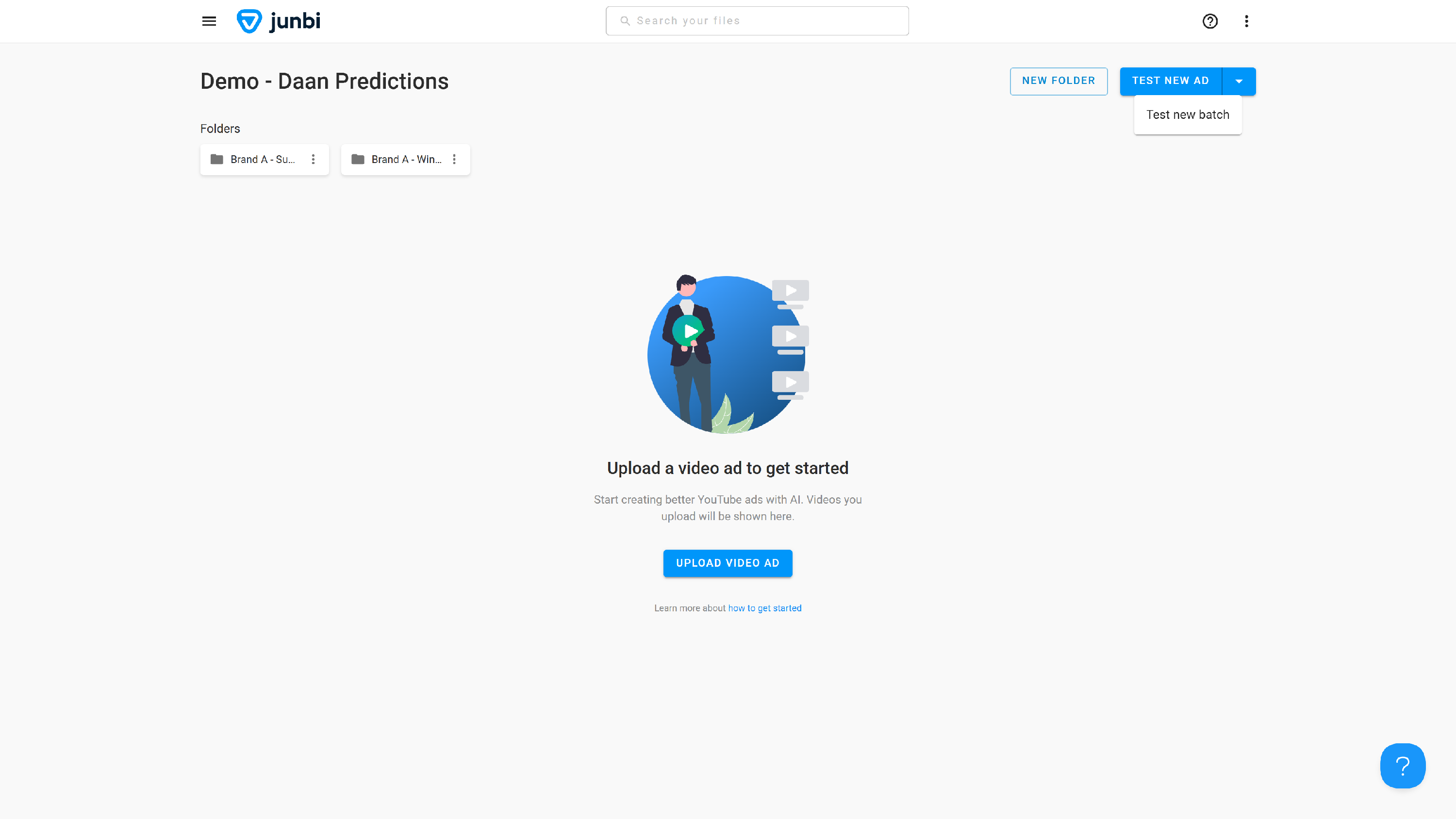
Navigate to the upload dashboard. Click the dropdown menu attached to the Test new ad button and select the Test new batch option.
Step 2: Fill in your batch details
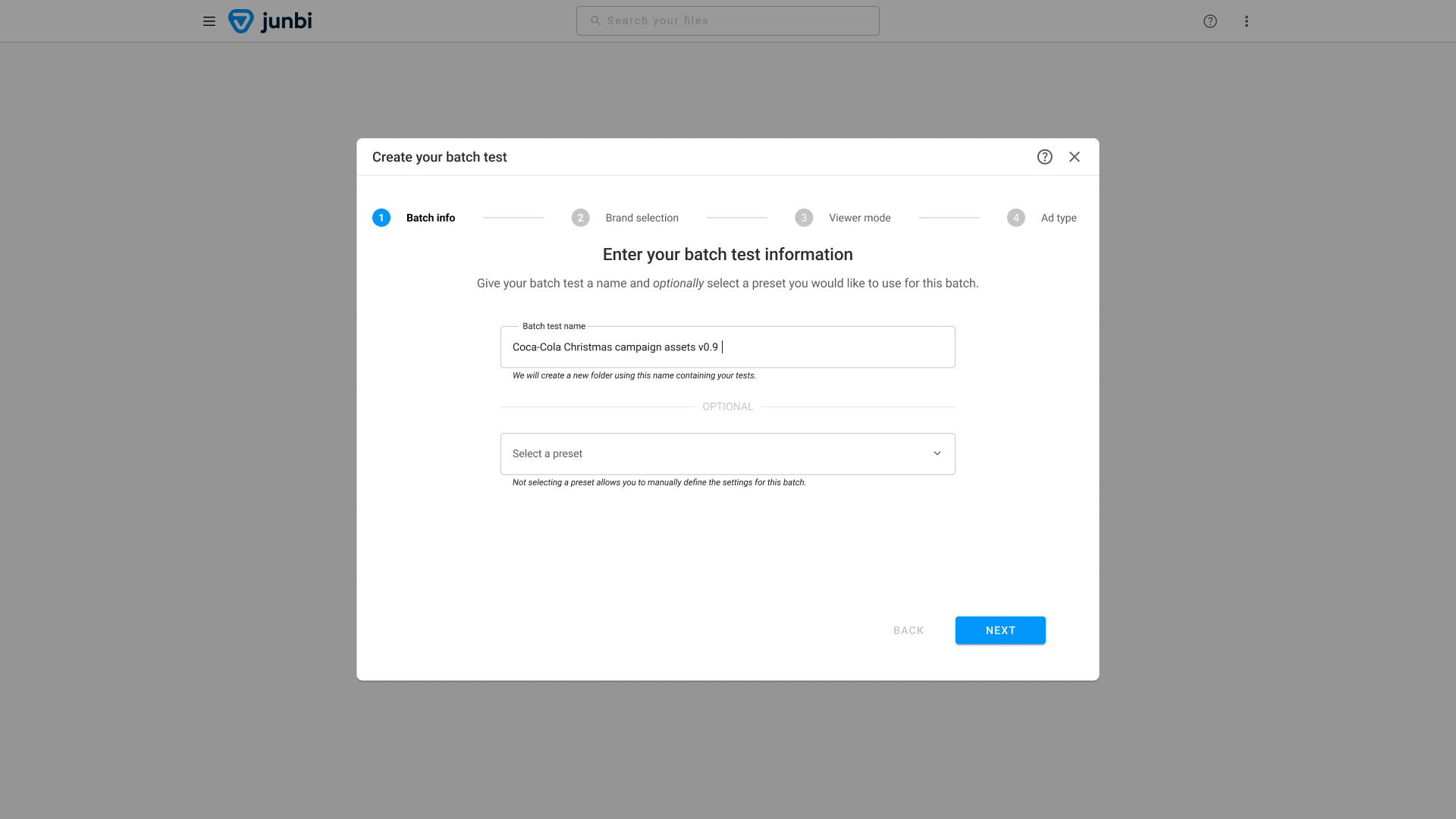
Enter a descriptive name in the Batch Name field. This name is highly important because junbi will automatically create a dedicated folder using this exact name to house all of your processed assets when the analysis is complete.
Note: If you want to bypass manual setup, you can select an existing preset from the Preset dropdown menu here to instantly load your settings and skip to step 6.
Step 3: Select your brand name
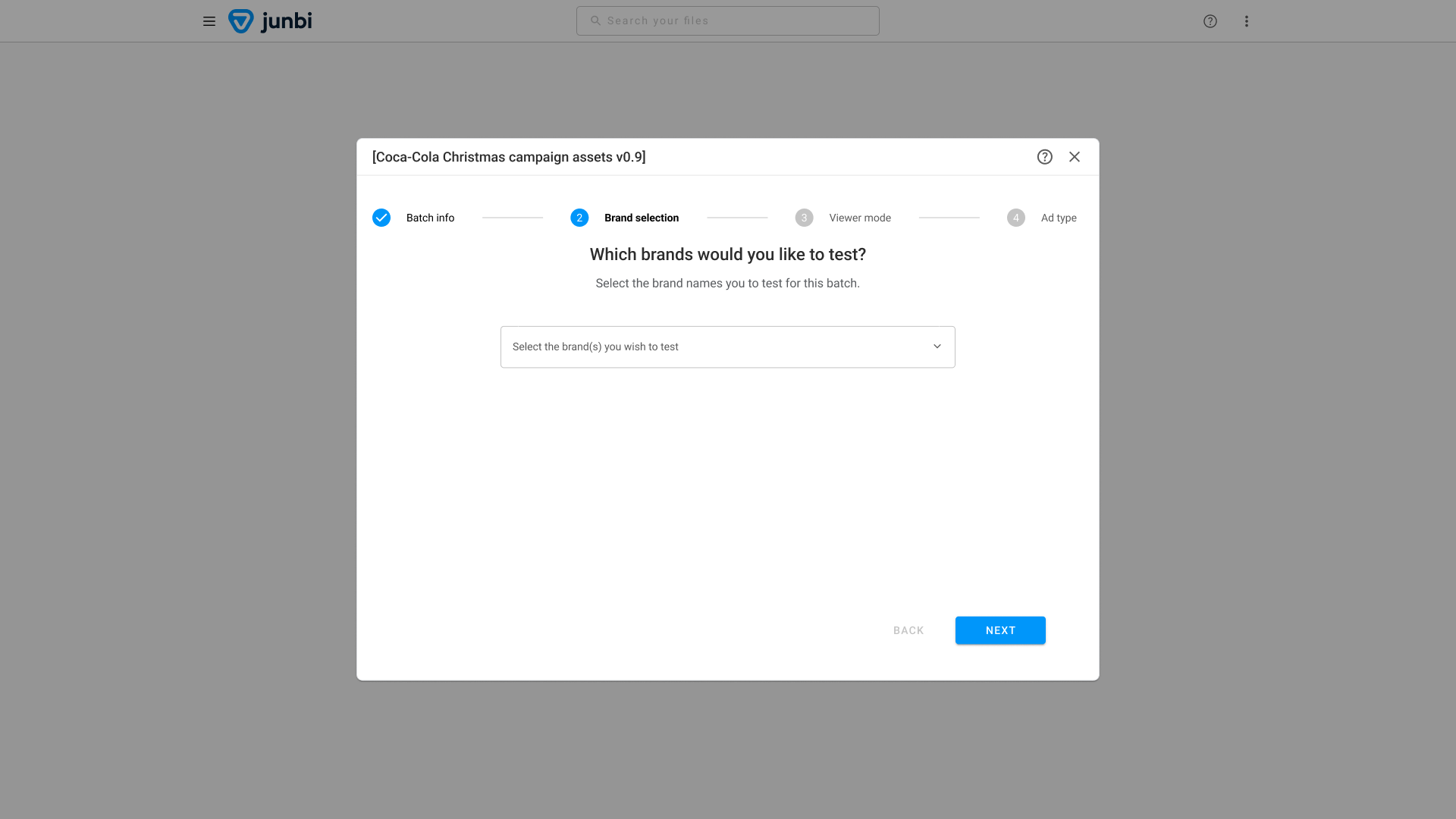
If configuring manually, type and select your brand from the Brand Name dropdown. The platform uses this selection to track your visual assets and accurately calculate your Brand Attention score.
Step 4: Choose your viewer mode
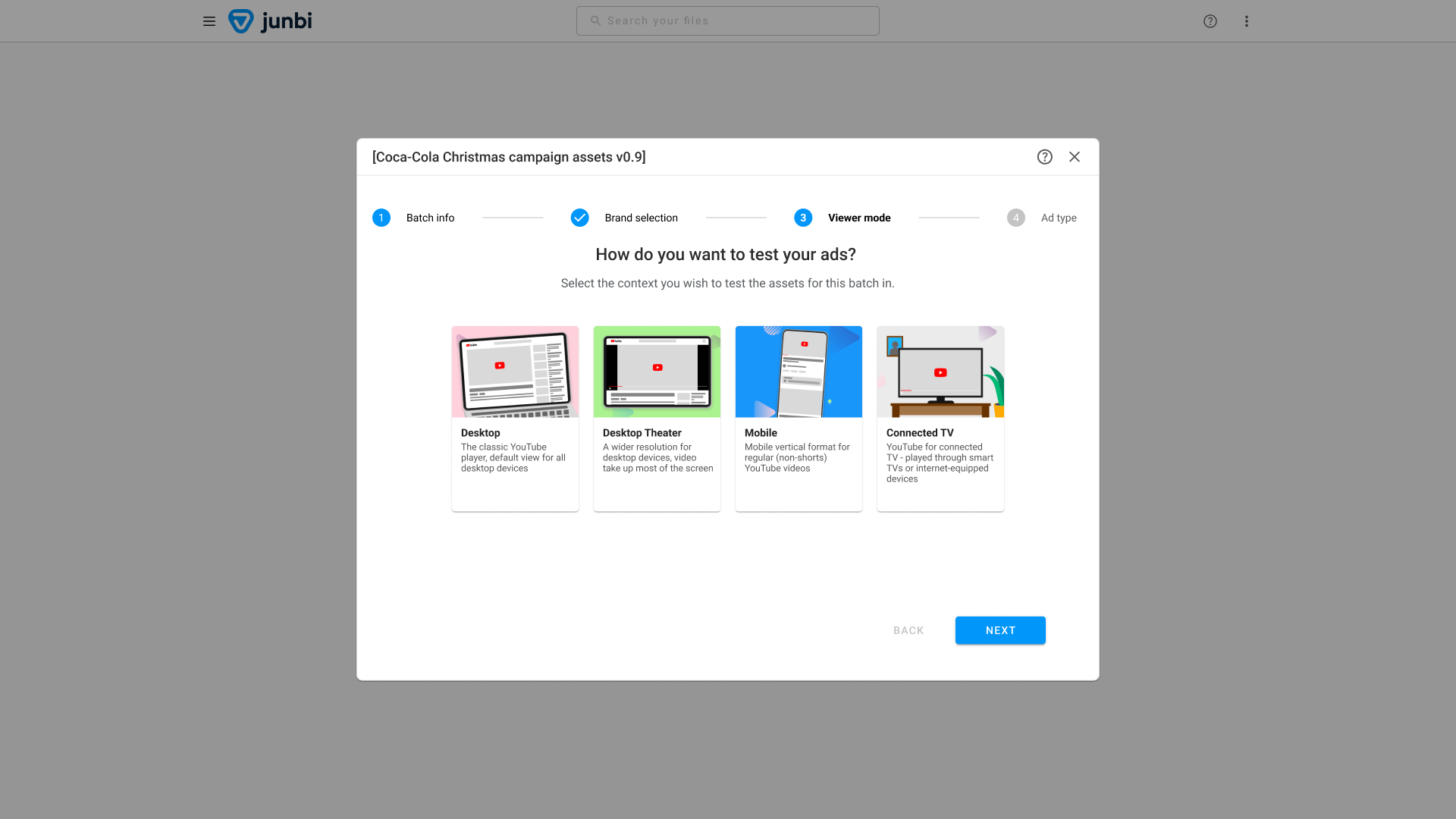
Select the video player environment you wish to test for, such as mobile portrait, full-screen, or desktop normal. This environment simulates real-world user distractions surrounding your ad, which directly influences your Ad Breakthrough score. Click
Next to proceed.
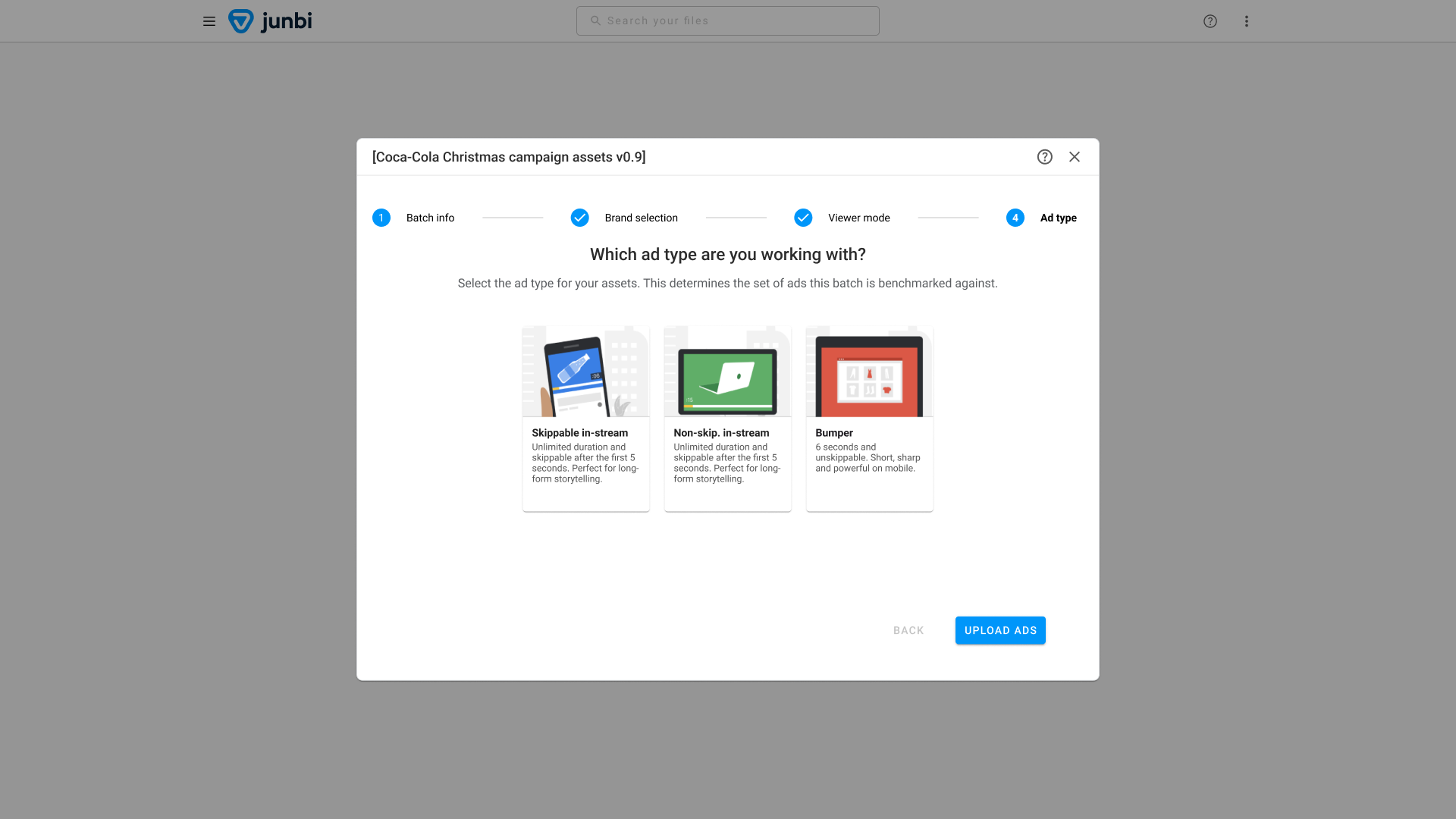
Step 5: Select your ad type
Select the YouTube ad format that corresponds to your creative strategy. Choose from Bumper Ad, Skippable In-Stream, or Non-Skippable In-Stream, then click Next.
Note: Different ad types dictate how viewer attention is scored and enforce different video length limits.
Step 6: Upload your creative assets
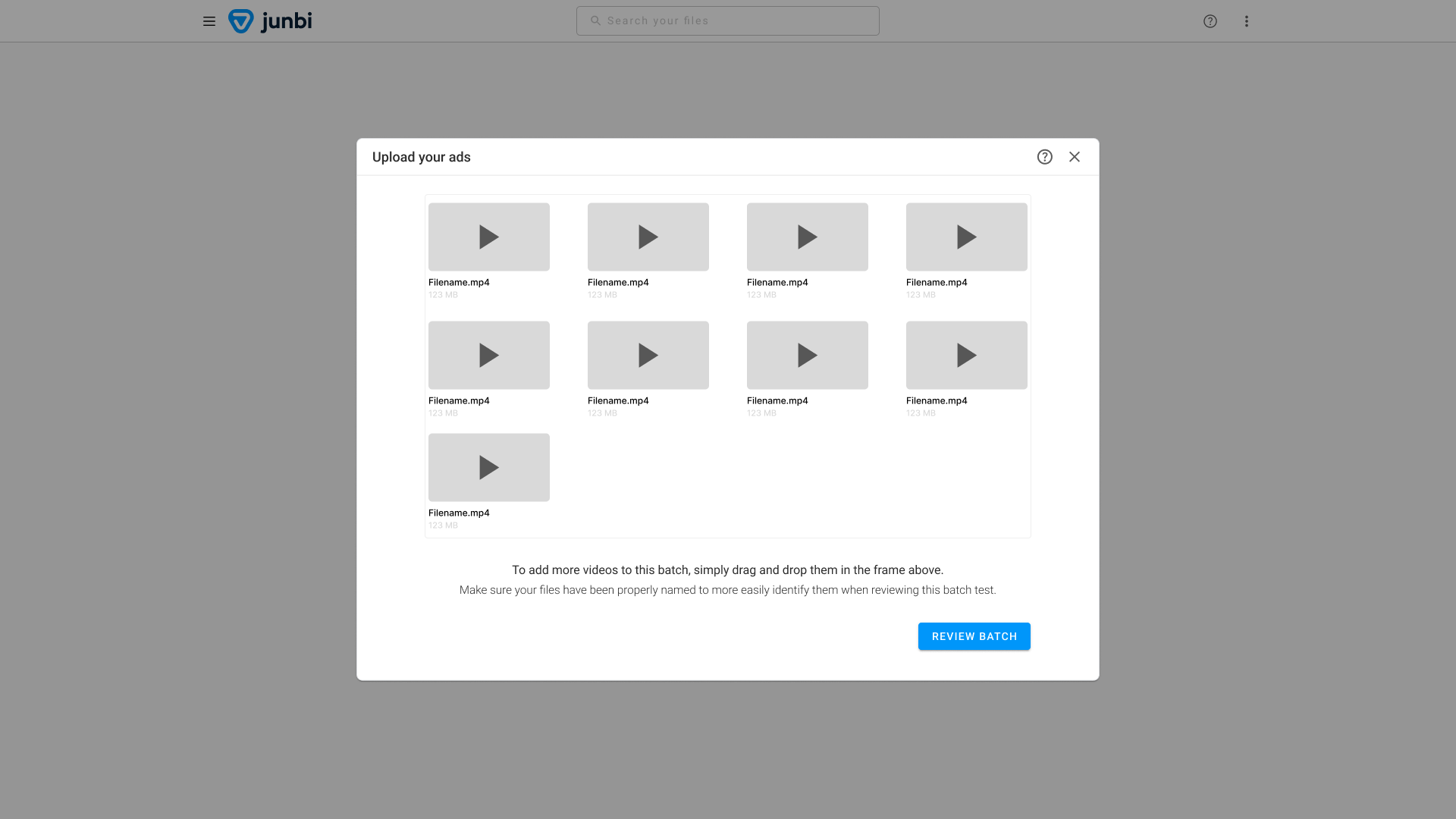
Drag and drop your video files or paste your YouTube links into the upload zone. You can upload as many files as you need, provided they all match the selected ad type and the following maximum duration limits:
- Bumper Ad: Maximum of 6 seconds.
- Skippable In-Stream: Maximum of 90 seconds.
- Non-Skippable In-Stream: Maximum of 90 seconds.
Step 7: Review and run your batch
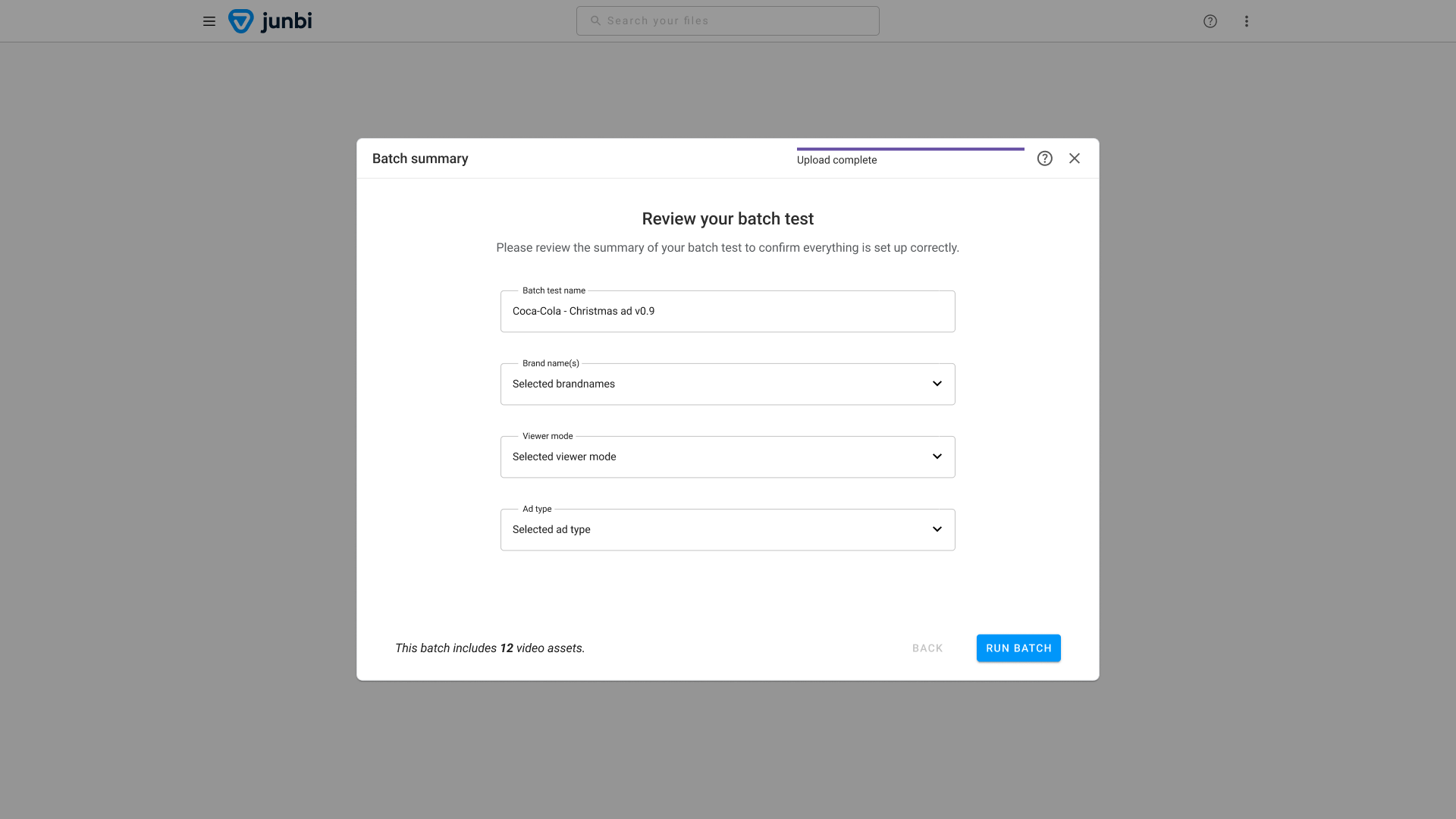
Take a moment to review your configuration settings. Check the bottom left corner of the screen to verify that the total number of uploaded assets matches your target list. If everything is correct, click the Run batch button.
Step 8: Monitor processing completion
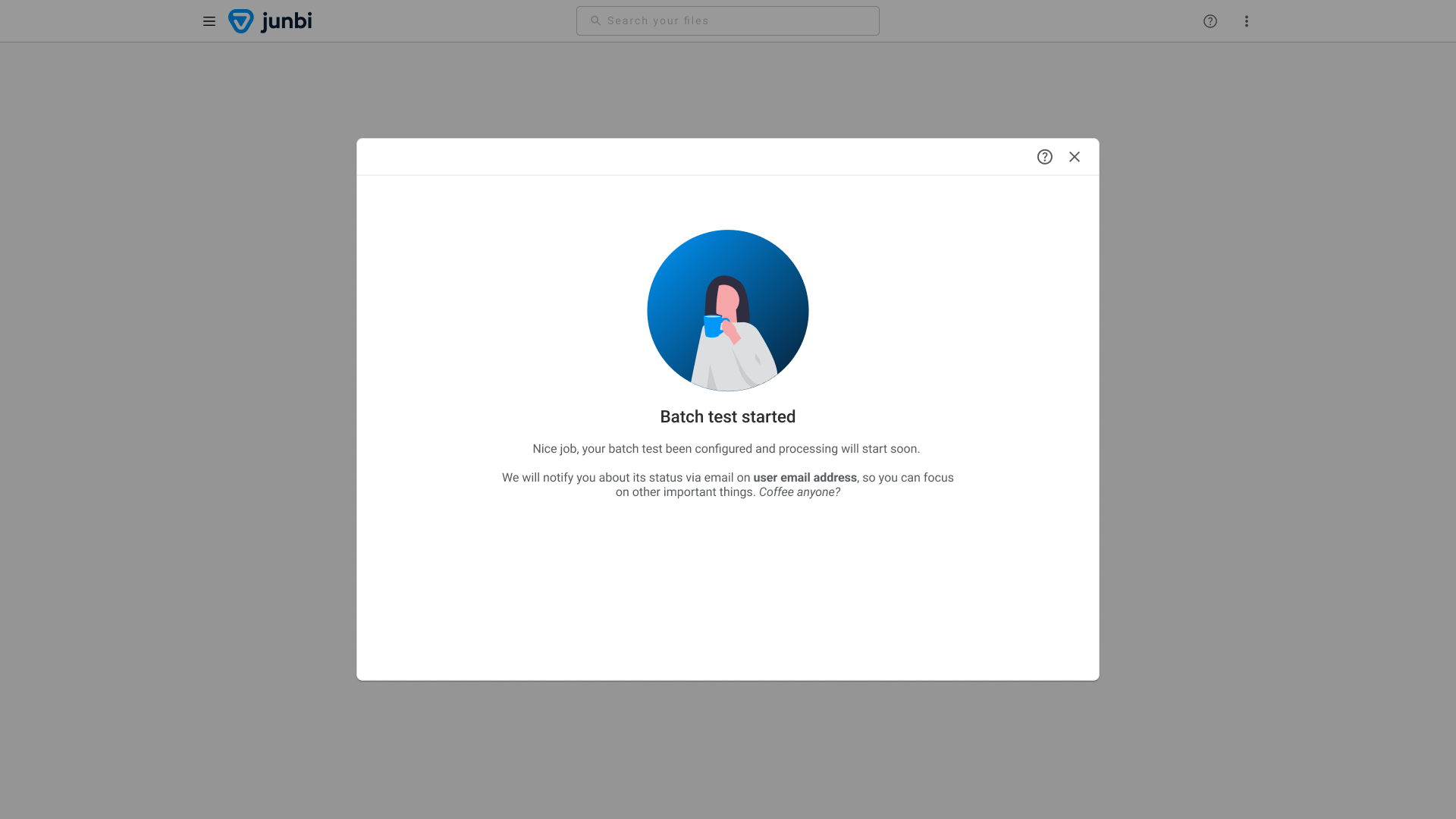
The platform will begin rendering visual attention heatmaps and calculating performance metrics for each video in your queue. Because this requires running several distinct machine learning models, processing may take a few minutes. You can safely close your browser tab and proceed with other tasks. The system will send you a confirmation email as soon as your entire batch is ready to view.
💡 Pro Tip:
Establish an organized folder structure right from the start. Because junbi automatically creates a new folder using your exact batch name, use a highly descriptive naming convention such as "ClientName_CampaignName_MonthYear" for your batch details. This keeps your main files dashboard completely organized and scannable without requiring any manual sorting later.