
Can I test LinkedIn ads in junbi?
Testing LinkedIn video ads in junbi allows you to evaluate the Brand Attention and Cognitive Ease of their video messaging. Even though junbi predictive models are built on YouTube benchmark data, uploading your LinkedIn video assets provides vital second-by-second diagnostics on whether your executive audience will notice your brand and easily digest your message.
The Strategic Value
Business professionals on LinkedIn browse through dense feeds of professional updates, making visual clarity essential. Testing your LinkedIn creative in junbi ensures that complex business propositions remain simple to process and that key brand elements stay prominent throughout the ad.
Step-by-Step Upload Workflow
- Format your LinkedIn video creative as an MP4, MOV, or M4V file.
- Navigate to your junbi dashboard and click the Upload ad button.
- Enter your campaign information and select your brand name from the Brand Name list.
-
Select your viewer mode based on your target audience behavior. Choose Mobile for mobile app viewers, or Desktop if your campaign primarily targets working professionals on desktop web browsers.
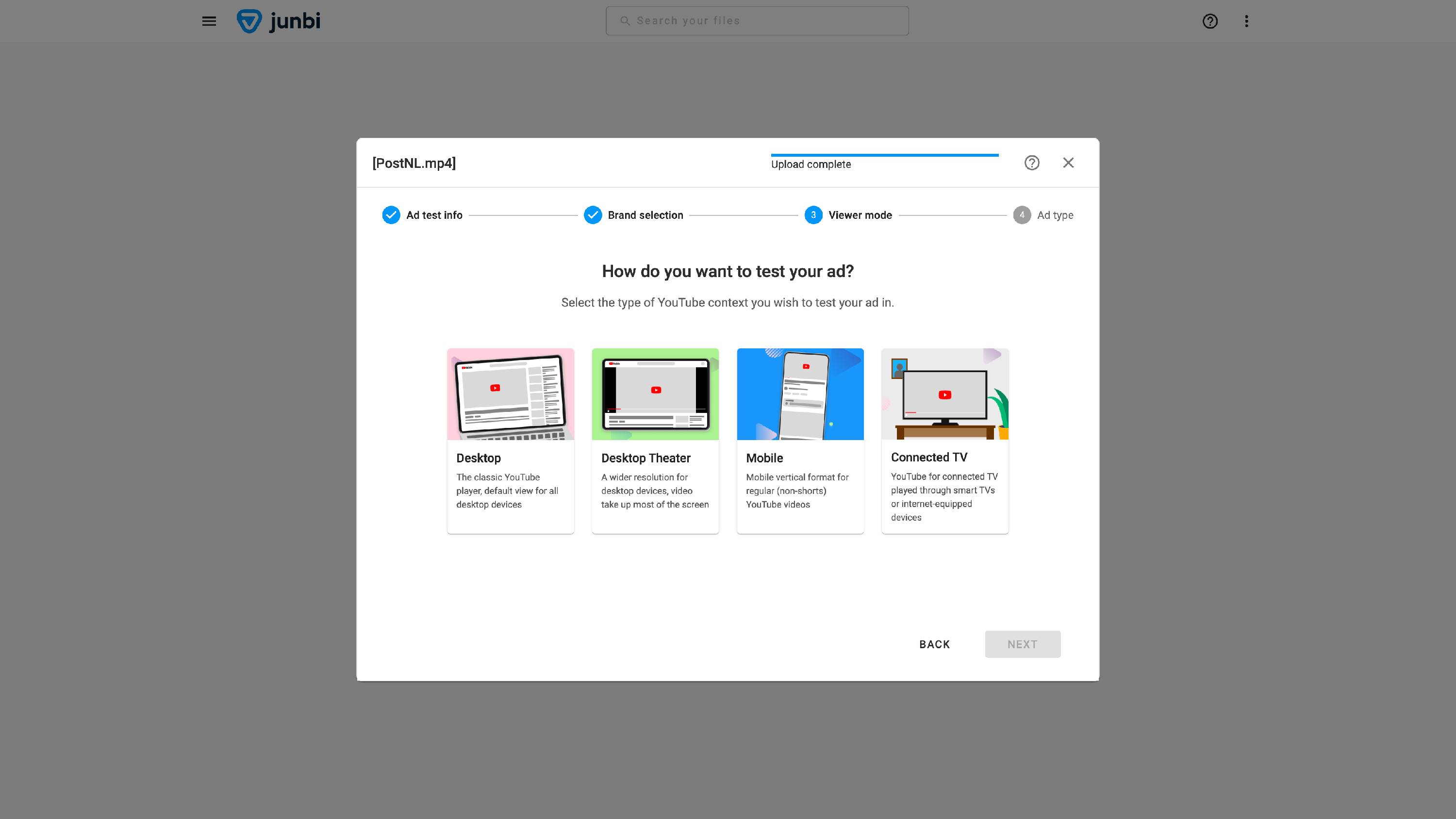
- Select the ad type format that corresponds to your video duration.
- Click the Run prediction button to start processing your video.
- Evaluate your Brand Attention over time and Cognitive Ease over time reports to optimize your visual structure.
Note: If you need to test static LinkedIn feed image posts, you can analyze single images using expoze.
💡 Pro Tip:
Establish immediate brand presence. Professional feed users scroll past sponsored content quickly if the value proposition is unclear. Introduce your brand logo or product asset within the first three to five seconds of the video, and use your junbi second-by-second Brand Attention diagnostics to verify that viewers focus on your brand immediately.